Excise – DA 180 Environmental Account for Carbon Tax

25 March 2024 – The DA 180 Environmental Account for Carbon Tax guide has been revised as follows:

  • To align with the relevant sections of the Act.
  • Updated the name as well as acronym for the Department of Forestry, Fisheries and the Environment’s.
  • The calculation of net levy payable was amended.
  • The document code changed from SE-CBT-03-M01 to SE-CBT-04.

SE-CBT-04 – DA 180 Environmental Account for Carbon Tax – External Guide

Source: SARS Tariffs
Excise – DA 180 Environmental Account for Carbon Tax

Advancement in requesting the SARS certificate for Third Party Data submission

19 March 2024 – As part of the third-party data submission process, third-party entities are issued annually upon request, a SARS security certificate which forms part of their enrolment and activation process. The SARS security certificate allows SARS to validate and process high-volume data files received from third-party entities during their data file submissions via Connect: Direct™ technology (CD) and Secure Web: https (SFG).

However, since SARS no longer supports browsers that were identified as posing security and risk-related issues, this made it difficult for many third-party entities to request and renew their security certificates. Additionally, this was disadvantageous to the third-party data submission process as new entities could not easily enrol and renew expired certificates.

To address this, a solution was developed to enable third-party entities to enrol and activate their preferred channels of submission via eFiling. Following the completion of the enrolment and activation, a security certificate that contains information about the certificate’s owner along with public and private keys will be issued, and only then will third-party entities be allowed to send their data files to SARS via CD and SFG.

Any queries relating to the third-party data submission process should be referred to the third-party data unit via the following email address: bus_sys_cdsupport@sars.gov.za.

The following guides relating to third-party data submission has been updated and are available on the SARS website:

Source: SARS Tariffs
Advancement in requesting the SARS certificate for Third Party Data submission

Tax Directives software update two pot retirement system

18 March 2024 – To facilitate the upcoming two-pot retirement system changes, SARS will be making enhancements to the Tax Directives process. The changes are detailed in IBIR-006 Tax Directives interim Interface Specification Version 6.701. Once the law has been promulgated, an updated version of the Interface Specification will be made available. SARS will also communicate trade testing dates in due course.

Source: SARS Tariffs
Tax Directives software update two pot retirement system

SARS Online Query System Enhancement

18 March 2024 – In keeping up with the continuous SARS Online Query System (SOQS) enhancements, the SOQS External Guide has been updated as follows: 

  • The ‘Submit supporting documents’ and ‘Report new estate case’ queries have been updated in line with the latest system enhancements.
  • The following new queries have been included in the guide:
    • Request for Auto Assessment status: This enables the taxpayers to query whether they are part of the SARS Auto Assessment population or not.
    • Submit an LBI query: This enables the taxpayers registered at the Large Business and International (LBI) or High Net Worth (HNW) to direct their queries to LBI or HNW.

GEN-GEN-51-G01 – SARS Online Query System – External Guide

Source: SARS Tariffs
SARS Online Query System Enhancement

PAYE Employer Reconciliation BRS for the 2025 tax year

7 March 2024 – PAYE Employer Reconciliation BRS for the 2025 tax year was published.

The changes include:

  • New source code (3926) for the Withdrawal from a Retirement Fund from the Savings Component/Pot
  • Amendment of descriptions and/or validation rules for:
    • Unclaimed benefits (source code 3909)
    • Certificate Number (source code 3010)
    • Directive Number (source code 3230)
    • Directive Income Source Code (source code 3232)
    • Transfer of Unclaimed Benefits (source code 3923)
    • NED Directors / Audit Committee Member Fees (source code 3620/3670)

The submission dates:

    • Interim: 16 September – 31 October 2024
    • Annual: 1 April – 31 May 2025

Source: SARS Tariffs
PAYE Employer Reconciliation BRS for the 2025 tax year

Guide to Declaration and Return Submission via eFiling

Summary

The purpose of this Webpage is to assist clients how to request and submit returns for Excise products
(focusing on local manufacturing declarations) on eFiling.

Portfolio Management

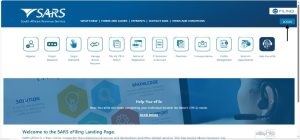
To access the SARS eFiling homepage, the client must:

  • Enter their username.
  • Click on Next.

  • Enter their password and click on Login.

  • Once logged into SARS eFiling, the client must:
    • Click on Duties & Levies.

  • Click on the Portfolio drop down arrow to select the portfolio associated with their Excise products.

  • Click on the Taxpayer drop down arrow to select the taxpayer linked to their Excise profile.

How to request a return

  • Once the client has made the correct portfolio and taxpayer selections in Portfolio management, they can start the
    process of requesting a return. This process is applicable for all excise products (except CEB01
    requests). The client must:
    • Click on Excise Levies & Duties.
    • Click on Request Return.

  • Where specific excise product does not appear on the list provided, click on Refresh my list of
    registered Products.

  • Click on Select, at the radio button against the applicable industry and corresponding warehouse
    number.
  • Click on Request History Return Listing.

  • Click on Select NEW.
  • Click on Request Next Return.

  • The return has now been issued. The client must now click on the Industry hyperlink to generate the
    return.

How to upload Comma-Separated Values (CSV) files

  • Some excise products like Ad Valorem and the Health Promotion Levy on Sugary Beverages, require
    CSV files to be uploaded before a requested return can be issued. When required to upload a CSV file,
    the client must:
    • Click on Upload Data.

  • Click on Choose File.
  • Select the applicable CSV-file.
  • Click on Open.
  • Click on Upload and Submit.

  • Where the upload had previously failed, choose a different CSV file or re-upload the amended
    current file.
  • Click on Upload and Submit.

  • Once the file has been uploaded successfully, click on the Industry hyperlink to commence capturing
    the return.

How to capture a return

  • To commence capturing the return, the client must:
    • Expand the Licensee/Registrant Details header to verify their registration details.

  • Expand and collapse the following headers to verify their registered addresses as well as their
    contact person’s particulars:
    • Licensee/Registrant Physical Address.
    • Licensee/Registrant Postal Address.
    • Particulars of Representative Person.
    • Warehouse Physical Address.

  • The client must expand all applicable headers and capture all relevant information either by drop-down
    list selection or insertion.

  • Some excise products will require the client to:
    • Add rebated removal items.

  • Select the applicable rebate items via drop-down lists.

  • Click on the “>” arrow to bring up the additional fields in order to capture more rebate items.

  • When the capturing of all the rebate items is complete, the client click the save button to save the
    return.

  • A screen will appear to confirm that the return has been saved and provide the client prompts to
    continue,
  • Click the Continue button, to access the return information captured.

  • Click on the Industry hyperlink to activate the information captured. This will open up the
    Declaration popup screen.

  • Click on Validate to confirm that all information has been captured correctly.
  • Click on Agree on the Declaration pop-up window.

  • Click on Continue.

  • If there were errors found in the return submission, the client must:
    • Click on the View Errors hyperlink to analyse the errors found.

  • Review the summary of the error(s) that require correction. These errors will be displayed in a
    new window.

  • Once all the errors have been corrected, click on Validate button thereafter a declaration pop up
    window will open. Click on the Agree button to make the required declaration.

  • Click on Continue.

  • Click on Back to Search once the return has been validated successfully.

  • Click on File Return button then a declaration pop up window will open. Click on the Agree button
    to make the required Declaration.

  • Click on Continue.

  • The process is completed when the Status header reads Return Filed Successfully.

Request and submit of local manufacturing declarations – ZDP, ZGR and ZOL
(CEB01)

  • To request and submit a CEB01 billing form, the client must:
    • Click on Duties & Levies.
    • Click on Local Duties Payable, and
    • Click on Request Billing Form.

  • The client must select the applicable billing form on the Industry, Warehouse Number and Action fields.
  • The Status field indicates whether a billing form has already been issued to their profile.
  • The following instructions applies to billing forms:
    • If a billing form has already been issued, click on the Open hyperlink.
    • If a billing form has not been issued, click on Request to request one from SARS.
    • If a warehouse number(s) don’t appear on the list below, the client must make an appointment to
      visit their nearest SARS branch for assistance.

  • The client must click on the CEB01 hyperlink.

  • To commence completing the form, the client must:
    • Click on Excise Billing Details to expand its contents.

  • Insert the Closing Date of the Account as well as the Due Date under the Excise Billing Details
    ribbon.
  • Open the fields by clicking on the drop-down list and insertion under the Local Manufacturing
    heading.
  • Scroll down to the Line No. 1 – SCH 1 P 2A heading.

  • Click the drop down list to open up the fields where the information will be captured. Capture all
    information and under the Line No. 1 – SCH 1 P 2A heading.
  • Scroll down to the Declaration heading.

  • Select the correct date under the Declaration heading.
  • Click on the File button if satisfied that all information captured is correct.

  • Click on Continue.

  • The client will be able to keep track of the status of their return request as well as whether payment is
    due. The client will be contacted by SARS to communicate the outcome of their request.

Definitions, acronyms and abbreviations

The definitions, acronyms and abbreviations can be accessed here – Glossary webpage.

Legal disclaimer: In the event of conflict or inconsistency between this webpage and the PDF version of the guide, the latter shall prevail.

Source: SARS Tariffs
Guide to Declaration and Return Submission via eFiling