How does the solar rebate work?

26 June 2024 – Government introduced a rooftop solar tax incentive for individuals who invest in solar photovoltaic (PV) panels:

  • The tax credit will only apply to new and unused solar PV panels acquired and brought into use for the first time during the 2024 year of assessment (i.e. 1 March 2023 – 29 February 2024) and that have a minimum generation capacity of not less than 275W each.
  • The solar PV panels must form part of a system connected to the distribution board of a residence that is mainly (i.e. more than 50%) used by the individual for domestic purposes and an electrical certificate of compliance must have been issued for that residential property (i.t.o. the Electrical Installation Regulations, 2009) after the solar PV panels were installed.
  • The solar energy tax credit applies to the 2024 YOA only and the amount allowed as a deduction will be 25% of the cost of the above solar PV panels up to a maximum of R15 000.
  • Note: batteries, inverters, fittings or diesel generators, installation costs and portable panels do not qualify.

Complete the following fields on the return:

  • ‘How many new and unused solar panel(s) were installed?’ (maximum value allowed is 99)
  • ‘Do you confirm that new and unused solar panel(s) were installed with a minimum generation capacity of more than 275 Watts each?’ – (Select Y or N)
  • ‘Do you confirm that the solar panel(s) were connected to the distribution board of a resident that is mainly (more than 50%) used by you for domestic purposes?’ – (Select Y or N)
  • ‘Do you confirm that you received an electrical certificate of compliance issued in terms of Electrical Installation Regulations, 2009, pertaining to this installation?’ – (Select Y or N)
  • ‘Total cost incurred for solar panel(s)’ – source code 4056

Examples of supporting documents required:

  • A VAT invoice that indicates the cost of the solar PV panels separately from other items that do not qualify.
  • Proof of payment.
  • Electrical certificate of compliance.

For more information, see the Comprehensive Guide to the ITR12 Income Tax Return for Individuals.

Source: SARS Tariffs
How does the solar rebate work?

Outreach Activities to celebrate International SMME Day

26 June 2024 – On Thursday, 27 June, SARS will honour small businesses across South Africa under the theme, “Innovation Waves: Sailing SMMEs to Success”. The theme highlights the power of innovation in driving small businesses’ growth.

The outreach activities are taking place in various regions from 09:00 – 15:00 on 27 June, see the venues per region here.

Source: SARS Tariffs
Outreach Activities to celebrate International SMME Day

What must I do when I receive my auto-assessment notice?

26 June 2024 – This year from 1 July 2024 we will again issue auto-assessments to taxpayers whose tax affairs are less complicated. The first thing to do is to log into eFiling or the SARS MobiApp and view your assessment. You will see all the data we used to calculate your assessment.

If you agree with the assessment, check if a refund is due to you or if you owe SARS. If a refund is due, then there is nothing more you have to do — you can log out and wait for the refund, which you can expect within approximately 72 hours, provided your banking details with SARS are correct. If you owe SARS, then make the payment via eFiling or SARS MobiApp on or before the payment due date. The payment due date of the amount owed to SARS is displayed on the “Notice of Assessment” (ITA34).

If you do not agree with the assessment, you can access your tax return via eFiling or SARS MobiApp, complete the return, and file it on or before the normal due date for non-provisional taxpayers of 21 October 2024. If your auto-assessment was issued after 21 October 2024, file within 40 business days after the notice of assessment.

See all the frequently asked questions on auto-assessments here.

Source: SARS Tariffs
What must I do when I receive my auto-assessment notice?

SC-CW-01-07 – Inbound and Outbound Duty and Tax Free Shops – External Policy

Purpose

  • The purpose of this webpage is to explain the requirements, namely:
    • A duty and tax free shop for the sale of goods to Inbound and Outbound travellers is a licenced facility, in terms of Section 21(1) of the Act, situated at approved international airports.
    • The facility operates under the warehousing regime with specific accounting as well as record keeping principles to govern all goods on hand and removed to the retail outlet for sale.
    • Goods sold in these facilities are sold at a price that does not include any duty leviable in terms of the Act or any value-added tax leviable in terms of the Value-added Tax Act (Act No. 89 of 1991).

Policy Statement

Basic Requirements to Operate a Duty and Tax Free Shop

  • A duty and tax free shop may only be at one (1) of the international airports as designated in the Rules.
  • Inbound duty and tax free shops must be located before the Customs control point for inbound travellers. Outbound duty and tax free shops must be located after the Customs control point for outbound travellers. The sales areas must be separated from the storage areas.
  • Approval for a retail outlet facility and to open a duty and tax free shop must first be obtained from the authority managing the international airport, where after application to be licensed must be made to the Controller / Branch Manager on the prescribed forms (refer to SC-CF-19).
  • The necessary security in terms of the Rules as determined by the Customs Branch Office must be furnished (refer to SC-SE-05).
  • Sales from inbound duty and tax free shops are restricted to inbound travellers and sales from outbound duty and tax free shops are restricted to outbound travellers.
  • Travellers arriving from or who embark to the BELN countries may not purchase bonded duty free goods but only goods in free circulation.
  • Travellers from destinations outside the Southern African Customs Union (SACU) en route to a BELN country may purchase bonded goods.
  • No monetary restriction , regarding sales made to any specific shop, will be placed on the duty and tax free shops.

Import Clearance

  • Goods entered or cleared in terms of Section 38(1)(a) of the Act may be placed under a Customs warehouse regime, for purposes of being sold in a facility known as a duty and tax free shop licensed in terms of Section 21(1) of the Act.
  • All import clearances must be made on a CCD. Refer to SC-CF-55.
  • The category procedure code (CPC) that must be utilised will be determined by the type of duty and tax free shop licensed:
    • If licensed as an outbound duty and tax free shop the CPC for warehouse for export only (E42-00) must be used.
    • If licensed as an inbound or both inbound and outbound duty and tax free shop the CPC for warehousing (E40-00) must be used.
  • All import control requirements (certificates, permits, letters of authority, etcetera) must be met at the time of clearance under the CPC for warehousing.
  • Goods prohibited from importation and / or exportation may not be warehoused or sold at duty and tax free shops.

Warehouse Register and Inventory Control at Time of Importation

  • All goods stored in the warehouse and placed on sale in the retail outlet facility must have a unique stock code:
    • Goods, for example cigarettes classified under tariff heading 2402.20.90, must be recorded in the register reflecting both the tariff classification and the stock code.
    • A separate stock code must be allocated for each brand and its specific packaging.
    • Cartons containing packets of 10s must have a different stock code than cartons containing packets of 20s.
  • Upon receipt of bonded goods into the warehouse, the warehouse register must be updated to reflect such entry particulars.
  • The register must contain the following minimum information:
    • The CCD Movement Reference Number (MRN) and date;
    • Port of entry;
    • Quantity placed in warehouse per CCD; and
    • Storage location of the goods in the warehouse.
  • Only bonded goods may be kept in the licensed SOS warehouse.
  • Goods in free circulation must be stored separately.

Picking Phase and Documentation Requirements

  • Picking of goods for distribution to the retail outlets may take place at any time when replenishing is required.
  • Goods must be reflected on a picking slip.
  • The picking slip must contain the following minimum information:
    • Licensee and duty and tax free shop operator name;
    • To which retail outlet the movement will take place [in instances of licensees with more than one (1) retail outlet];
    • Goods code;
    • Quantity; and
    • A clear distinction between bonded and free circulation goods if removed together.
  • The picking slip must be retained as a record of movement, which may be requested at any time by a Customs Officer.

Removal to Retail Outlet

  • Bonded goods being removed from the storage area to the retail outlet must be packed in a lockable trolley and a copy of the picking slip must accompany the goods.
  • Trolleys may not be left unattended in any area with general access to the public.

Sale Transactions and Information Required on the Sales Document

  • All bonded goods in the retail outlet must be clearly marked indicating that the selling price does not include duty and VAT.
  • In the event that any goods placed in a warehouse requires an export certificate, permit or other such document to be produced prior to exportation, they may not be sold to outbound travellers unless the licensee is in possession of such certificate, permit or other document.
  • The tax and duty free shop operator must before concluding a sales transaction:
    • Obtain from the traveller a valid flight ticket, boarding pass and passport to be eligible to purchase; and
    • Capture the flight and seat number from the boarding pass and reflect such on the cash receipt or sales document.
  • Cash receipts or other sales documents must be serially numbered and issued in duplicate containing the following minimum information:
    • Information pertaining to the traveller:
      • The specific retail outlet must be mentioned, for example shop 7 terminal 2;
      • The date of arrival or departure;
      • In the instance of an outbound traveller the airport of destination;
      • In the instance of an inbound traveller the airport of departure; and
      • The flight number and seat number.
    • Information pertaining to the goods sold:
      • Precise description of the goods;
      • The quantity;
      • The sales price in South African Rand; and
      • The stock code.
  • Bonded and free circulation goods sold to inbound travellers at the inbound duty and tax free shop must be placed and sealed in a transparent package ensuring the goods are visible together with the copy of the cash receipt or other sales document.
  • The duty and tax free shop must keep the original sales document for record purposes.

Time Period for Sales and to make Clearance

  • Duty and tax free shop operators are permitted to sell goods for a period of seven (7) days without furnishing clearance.
  • A further seven (7) days are allowed to conduct consolidation of all sales in the preceding seven (7) days.
  • On the fourteenth day, the CCD must be submitted to SARS Customs.
  • The Controller / Branch Manager may determine the start and end period of the fourteen (14) day period.
  • All clearance documents must be submitted on the fourteenth day or the last working day prior to such a day if it falls on a weekend or public holiday.
  • CCDs may be submitted in electronic format or manually (refer to SC-CF-55).

Warehouse Register and Inventory Control after Consolidation Clearance

  • The warehouse register must be updated to reflect the CCD MRN, date and the quantities.
  • The goods total must balance.

Definitions, acronyms and abbreviations

The definitions, acronyms and abbreviations can be accessed here – Glossary webpage.

Legal disclaimer: In the event of conflict or inconsistency between this webpage and the PDF version of the policy, the latter shall prevail.

Source: SARS Tariffs
SC-CW-01-07 – Inbound and Outbound Duty and Tax Free Shops – External Policy

Updated Guides for Filing Season 2024

24 June 2024 – In the run up to Filing Season 2024, SARS has published the following updated Guides:

The Personal Income Tax phase of Filing Season 2024 commences with the issuing of auto-assessments from 1 July 2024 up to 14 July 2024. Taxpayers who do not agree with their auto-assessments can file a tax return immediately, while all other taxpayers who are still required to file a tax return will be able to do so from 15 July 2024 onwards, with the exception of Trusts, which can do so from 16 September 2024 onwards. Non-provisional taxpayers who are required to file a tax return, as well as taxpayers in the auto-assessment population who wish to file a return in response to their auto-assessments, have until 21 October 2024 to do so. Provisional taxpayers and Trusts have until 20 January 2025 to file a return.

The updated Guides are outlining the changes and enhancements for this filing season, including but not limited to:

AUTO ASSESSMENT

Taxpayers who are part of the auto-assessment population will receive an SMS and/or email to notify them that an auto-assessment has been issued. An auto-assessment will be based on information available on SARS records and data received from employers, financial institutions, medical schemes, retirement annuity fund administrators and other third-party data providers.

Taxpayers who are in agreement with their auto-assessments do not have to file a tax return or do anything more. Taxpayers who are not in agreement with their auto-assessments can file a tax return in the normal way. SARS will provide each eligible taxpayer with the following information pertaining to the auto-assessment:

  • An ITR12 return that has been auto completed.
  • A Notice of Assessment (ITA34)

Note: the type of assessment will indicate ‘original estimate assessment’ to denote that it is an original assessment based on an estimate.

INVESTMENT INCOME FOR SPOUSE

From the 2024 Year of Assessment (YOA) each investment income section on the return will display a sub-section to separately declare investment income received by the spouse and this must be supported by a will and/or antenuptial contract in place to support this declaration.  This applies in cases where investment income only accrues to one spouse despite the fact that they are married in community of property.

TAX FREE INVESTMENTS (TFI)

A Tax-Free Investment is a financial instrument; or policy (as defined in section 29A of the Income Tax Act) owned by a natural person or deceased/insolvent estate of a natural person and is administered by a person or entity designated by the Minister of Finance (e.g. banks, long term insurers, national government, collective investment scheme companies).

From 1 March 2024, if an individual’s year of assessment is less than 12 months, the balance of the annual TFI limitation not fully utilised will be carried over to any subsequent year of assessment that falls within the same tax year:

If a taxpayer ceased to be resident and has more than one ‘period’ assessment for the same tax year, the balance of the annual TFI limitation not fully utilised in the first period assessment will be used in the subsequent period assessment.

If a taxpayer was coded as insolvent during the year of assessment, any balance of the annual TFI limitation not fully utilised for tax reference number 1 (coded number) will be used for tax number 3 (new tax number), should the taxpayer declare tax free investment for the same year of assessment.

ALLOWABLE RETIREMENT FUND CONTRIBUTION DEDUCTION

Section 11F(2)(a) of the Income Tax Act was amended. With effect from 1 March 2024, where a person’s year of assessment is less than 12 months, the amount used to calculate the allowable retirement fund contribution deduction (currently R350 000 i.t.o. section 11F(2)(a)) must be proportionate to the number of days in that year of assessment.

SOLAR ENERGY TAX CREDIT

Government introduced a rooftop solar tax incentive for individuals who invest in solar photovoltaic (PV) panels.

  • The tax credit will only apply to new and unused solar PV panels acquired and brought into use for the first time during the 2024 year of assessment (i.e. 1 March 2023 – 29 February 2024) and that have a minimum generation capacity of not less than 275W each.
  • The solar PV panels must form part of a system connected to the distribution board of a residence that is mainly (i.e. more than 50%) used by the individual for domestic purposes and an electrical certificate of compliance must have been issued for that residential property (i.t.o. the Electrical Installation Regulations, 2009) after the solar PV panels were installed.
  • The solar energy tax credit applies to the 2024 year of assessment only and the amount allowed as a deduction will be 25% of the cost of the above solar PV panels up to a maximum of R15 000.

Note: batteries, inverters, fittings or diesel generators, installation costs and portable panels do not qualify.

SARS MOBIAPP

The following enhancements have been made on the SARS MobiApp:

  • Taxpayers will now be encouraged to download the latest SARS MobiApp version. Where the taxpayer has an older version downloaded, an error message will be displayed on their device.
  • Taxpayers will now be redirected to their ITA34 once an auto-assessment has been issued.

Source: SARS Tariffs
Updated Guides for Filing Season 2024

SARS Customs Tariff Determination enhancements

24 June 2024 – The SARS Tariff Determination enhancement project, including the publication of Tariff Determination Numbers (TDNs), is divided into two phases: the first phase involves the online processing, issuing and publication of new applications by relevant internal users only. Traders will not be able to submit applications electronically as yet. Electronic submission of new applications by traders will follow in the second phase. The abridged version of the finalised TDN can be viewed via our search engine here.

Source: SARS Tariffs
SARS Customs Tariff Determination enhancements

Guide to Help You eFile

Summary

The purpose of this webpage is to assist taxpayers with the Help-You-eFile (HYEF) function on eFiling.

Help-You-eFile is a service on the SARS eFiling website that allows you, the taxpayer, to interact with a SARS Service Consultant, while the Service Consultant shares the displayed view of your eFiling profile screen.

This service allows the SARS Service Consultant to identify the problems you’re experiencing and to help you resolve these.

General Information

A Help-You-eFile session can only be initiated by you and is available for the following functions:

  • Individual income tax return;
  • Statement of account;
  • Notice of assessment (ITA34);
  • Tax calculator;
  • Payments;
  • Password reset;
  • Change own password;
  • Returns Issued;
  • Returns History;
  • Returns Search;
  • Additional Payments;
  • SARS Correspondence;
  • Disputes;
  • Voluntary Disclosure Search;
  • User;
  • Other Services;
  • Additional Services;
  • Registration.
  • Request for Reduced Assessment(RRA01).

Once you select the HYEF option on the website, you’ll have to call the SARS Voice channel on 0800 00 7277 and enter the unique session ID on the integrated voice response (IVR) for case enquiry (option 2), income tax enquiry (option3).

The Help You eFile (HYEF) functionality has been integrated into all the Voice Channel service queues and is therefore no longer – a standalone dial plan option or provide the unique session ID to the SARS Service Consultant when you have been transferred to a Service Consultant to join the Help-You-eFile session.

Request for Reduced Assessment (RRA01) form included is in HELP-YOU E-FILE (HYEF).

  •  The Help You eFile (HYEF) function has been extended to the Request for Reduced Assessment (RRA01) form.
  • A taxpayer who requires assistance with the RRA01 can initiate a Help You eFile (HYEF) request from eFiling and share his/her screen with a SARS user. The SARS user will be able to view the activity on the taxpayer’s screen and provide guidance.

JAWS Compliant

  • JAWS refer to Job Access with Speech and is a solution that allows blind and visually impaired users to read a screen either with a text-to-speech output or by a refreshable Braille display.
  • The RRA01 form loaded on Service System is JAWS compliant.

The Help-You-eFile system works by keeping the SARS Service Consultant’s internet screen in sync with yours.

The SARS Service Consultant can only view your screen and point to or highlight text fields and information on the active eFiling screen on your computer.

Note: The SARS Service Consultant will not be able to control or update your eFiling screen. Furthermore he/she will not be able to view sensitive information pertaining to your profile (this includes information such as login name; password; banking details and payment reference numbers). Additionally for security purposes, the SARS Service Consultant will not be able to view or access your desktop and files.

How to use Help-You-eFile

You can start a Help-You-eFile session either from the SARS eFiling login page or after you’ve successfully logged on to the SARS eFiling website.

How to log onto eFiling to access Help-You-eFile service

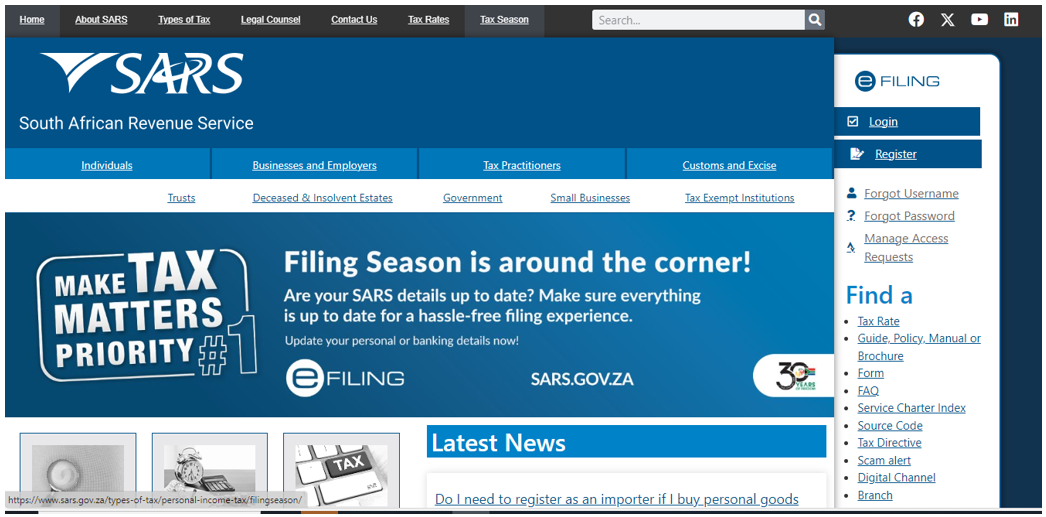
  • Go to www.sars.gov.za, and on the right-hand side of the screen you will see the eFiling logo and accessible links and the following screen will be displayed:

  • Click on the “Login” icon and you will be redirected to the sarsefiling login page,
  • Note: You can access the SARS eFiling login page by going directly to https://www.sarsefiling.co.za/.

  • Click on the <Help–You–eFile> icon, either on the login screen; or
  • Log on to the eFiling website, www.sarsefiling.co.za,
    • Complete the Username:

    •  Complete the Password:

  • Once you have logged into your eFiling profile. Click on the ‘Services’ menu option displayed as the main menu and ‘Live Help?’ on the left menu.

  • Once selected, you will be directed to a Help-You-eFile welcome screen. Note the following displayed on your screen:
    • A summary of the Help-You-eFile process.
    • The SARS Help-You-eFile online standard terms and conditions.
    • The toll-free number for the SARS Voice Channel.
    • A unique Help-You-eFile session ID.
    • The status of the SARS Service Consultant.
    • An option to log out of the session (Help-You-eFile).
  • Note: When you request Help-You-eFile after working hours the following screen will be displayed:

  • When you request the Help-You-eFile during working hours, the following screen will be displayed:

  • Once you agree with the terms and conditions, select the tick box to indicate that you have read the Help-You-eFile terms and conditions and then click on the <Accept> button to proceed.

  • Note: If the <Back> button is selected, you will receive a message to ask if you are sure you want to log out of Help-You-eFile.

  • If you select <No>, the welcome page will be displayed. If you select <Yes>, you will receive a thank you pop-up message and directed back to the previous screen.

Once the Terms and Conditions have been accepted: Note the following options to engage with Service Consultant:

  • You can proceed by calling the SARS Voice Channel on the number 0800 00 7277 and select option 5 for Help-You-eFile (if you’re not already on a call with a SARS Service Consultant), or
  • Click the <Call Me> button This will open the page displayed below for you to complete so that the Service Consultant calls you back. Complete all the fields on the <Call Me> page.

  • If you complete invalid information on either of the ID Number, Tax Reference Number or Contact Number fields, a message will be displayed on the screen.
  • The information entered into the <Confirm Contact Number> field should match the Contact Number field. A message will be displayed if it does not match.

  • If you submit invalid information, you will be prompted to provide valid information.

  • If you select <Submit>, a pop-up message will be displayed to confirm that your request was successful.

  • After submitting your request you have the option to cancel the call by selecting the <Cancel Call> button.

  • If you cancel the call, you will receive a pop-up message.

  • If you log out of Help-You-eFile, while a request to call you have been submitted, the following message will be displayed, that indicate that your call will be cancelled.

  • If you select <No>, the call back will remain active, and the Service Consultant will call you back. If you select <Yes>, the call back will be cancelled.
  • Note that the status will update as indicated below.

  • If the <Back> is selected, you will be directed back to the welcome screen.
  • Once you have answered the call back from the Service Consultant, you will receive the following message that indicates your case number.

  • If the SARS Service Consultant has not yet entered the unique session ID on the SARS system to connect; you will be notified that the system is waiting for the Service Consultant to connect.
  • Provide the SARS Service Consultant with the unique session ID (The session ID will be on the toolbar highlighted in green. It will flash until the SARS Service Consultant is connected and also when the session is terminated).
  • Help-You-eFile (HYEF) functionality has been integrated into all the Voice Channel service queues and is therefore no longer as a standalone dial plan option, when a taxpayer choose HYEF will be automatically launched and he/she will successfully enter the Help-You-eFile session ID, and the Service Consultant will be alerted that the Help-You-eFile session was launched automatically.
  • When the SARS Service Consultant has entered the unique session ID on the SARS system, a pop-up message will be displayed with your SARS Service Consultant’s name for you to confirm whether you would like the SARS Service Consultant to assist you.

  • If you select < NO>, the Help-You-eFile session will not continue but the call between you and your SARS Service Consultant will remain active.
  • If you select <YES>, a pop-up message will be displayed to confirm that your SARS Service Consultant is connected.

  • The name of your SARS Service Consultant will be displayed on the toolbar.

  • Your SARS Service Consultant can view the actions performed by you on the eFiling site such as vertical and horizontal scrolling on a page, scrolling to new page, fields highlighted on a particular screen and information that is typed by you.
    • Sensitive information such as passwords, answers to security questions, bank details, etc. will be protected. Numeric fields (such as bank account numbers) will be displayed as zeroes to your SARS Service Consultant and alphanumeric fields (such as passwords) will be displayed as an asterisk (*) to your SARS Service Consultant.
    • If you require assistance with a form, your SARS Service Consultant will be able view what actions you perform within the Flex forms only (i.e. those forms that are opened using the adobe flash player option). The PDF forms are static and non-editable. Your SARS Service Consultant won’t see what actions you perform within the PDF form and he/she also can’t point to or highlight any fields on the PDF form.

  • Once you have logged into your eFiling profile and one of the following instances occur:
    • Captured more than 3 fields on the form and then are inactive on eFiling for more than 2 minutes; or
    • Pressed the same button 3 times on a form; or
    • Pressed the calculate button 3 times on the form;
  • An educational message will then be displayed providing more information on what Help-You-eFile is, with the following options available on the message:
    • Don’t show this again – you will close the message and it will not be displayed in the future.
    • Back to eFiling – you will be routed back to eFiling and not to the Help-You-eFile functionality.
    • Launch Help-You-eFile – the Help-You-eFile function will be launched.
    • Continue with demo – if you click this button, images will be displayed to you on how Help-You-eFile work and what is displayed to you and to the SARS Service Consultant.

  • You can view text or fields that are selected by your SARS Service Consultant.
    • Text or fields selected by your SARS Service Consultant will be highlighted in purple on your screen.
    • Text or fields selected by you will be highlighted in green on your screen.
    • Masked fields are highlighted in yellow and if you place the cursor over these fields, you will be notified that the information displayed/entered on that field is hidden from your SARS Service Consultant.

  • Your SARS Service Consultant may request a re-synchronisation should his/her screen become out of sync with your eFiling screen. In this instance, the following pop-up message will be displayed on your screen.
    • Select <Decline> if you don’t wish to continue with the re-synchronisation.
    • If you wish to continue with the re-synchronisation, save any work that you are busy with and then select <Accept>.

  • The following pop-up messages may be displayed on your screen:

    • Click on <OK> to indicate that you note the message.
    • If the phone call between you and your SARS Service Consultant gets disconnected, the Help-You-eFile session will automatically end and you’ll have to start the session again by clicking on the Help-You-eFile logo.
  • When you no longer require assistance from your SARS Service Consultant, select the ‘Disconnect Service Consultant’ button to end the Help-You-eFile session.

Note: Ending the session does not end the call.

  • A pop-up message will be displayed to confirm that your SARS Service Consultant has disconnected.

Share your Experience with us

  • SARS would really like to receive your feedback on your Help-You-eFile experience and how to improve our service. You have an option to complete an online survey which will be displayed on your screen automatically. This survey will only take one minute to complete.

Definitions, acronyms and abbreviations

The definitions, acronyms and abbreviations can be accessed here – Glossary webpage

Legal disclaimer: In the event of conflict or inconsistency between this webpage and the PDF version of the guide, the latter shall prevail.

Source: SARS Tariffs
Guide to Help You eFile